
Nobus Data Center as a Service (DaaS)
Nobus understand the integral part played by Data centers. The security and reliability of our data center and its information is our top priority. DaaS allows connection to public or private network infrastructure with an encrypted VPN (MPLS or Internet) connection. Take advantage of our platform that supports applications and workloads across pools of physical infrastructure and multi-cloud environments.
Nobus ensures that both facility and equipment are secured against intruders, while providing round-the-clock access to information. Services such as Security Groups, Firewall as a Service (FaaS), Network ACLs, Loadbalancer, Auto-Scaling, and Software defined Network infrastructure are available for provisioning.
You have complete control over your virtual networking environment, including; selection of your own IP address range, creation of subnets, and configuration of route tables and network gateways.
Instance IP addressing
Nobus FCS and Nobus Data-center support only the IPv4 addressing protocol. IPv6 is not supported for now. You must specify an IPv4 CIDR block when you create a Data-center.
Jump To:
Private IPv4 and internal DNS Public IPv4 and external DNS Floating IP addresses (IPv4) Nobus DNS server Working with IPv4 addressesPrivate IPv4 addresses
Cannot be reached over the Internet. Suitable for communication between instances in the same Data-center (DHCP). See RFC 1918.
Instances receive a primary private IP from the subnet range. Associated network interface (eth0) is assigned the primary address.
Public IPv4 addresses
Reachable from the Internet. Each instance receives an external DNS hostname; e.g., fcs-102.224.0.2.compute-1.nobuscs.com. Mapped via NAT (RFC 1631).
- Assigned by default in default Data-centers.
- Released when instance is stopped, hibernated, or deleted.
- If you require a persistent public address, use a Floating IP.
Floating IP addresses
A public IPv4 address allocated to your account. Associate and disassociate from instances as required. Allocated until you choose to release it.
Working with IP addresses
View details in console via Instances or Network Interfaces page. Public IPs are mapped via NAT and won't show in local ifconfig or ipconfig.
Quickstart Guide
Creating a Network Interface
You can create a network interface in a subnet. You can't move the network interface to another subnet after it's created, and you can only attach it to instances in the same Availability Zone.
Console Procedure
- Log in to the Nobus Console
- Go to Project > Network > Networks.
- Click Create Network.
Specify the following values in the dialog:
Network Tab:
- Network Name: A unique identifier for the network.
- Shared: Share with other projects (Admin only).
- Create Subnet: Ensure this is checked to allow instance attachment.
Subnet Tab:
- Network Address: Specify the IPv4 CIDR range.
- Gateway IP: Optional specific gateway address.
- Click Create. The dashboard will show the new network under the list.
Floating IP Addresses
Floating IPs on Nobus are static IP addresses that are publicly-accessible to FCS Instances in the same datacenter. Floating IPs are free when assigned to a FCS Instance. The floating IP association can be modified at any time regardless of the state of the instance in question. Floating IP’s as any other Openstack resources have their cost when kept reserved and not used. If you dont want to keep your Floating IP’s reserved for your project you may release them to the pool for other users which will also reduce your project costs.
When a Floating IPs is reserved but not assigned to a FCS Instance, it still cost ₦1500 Naira per 1 FIP billed monthly due to the shortage of available IPv4 addresses.
Features
Floating IPs let you redirect network traffic between any of your FCS Instances within the same datacenter. Assigning a floating IP to a FCS Instance doesn't replace or change its original public IP address.
You can use floating IPs to create server infrastructures without single points of failure, but a floating IP alone does not automatically provide high availability. For a setup to be highly available, you need to implement a failover mechanism to automate the process of detecting failures of the active server and reassigning the floating IP to a passive server.
Implement a failover mechanism with floating IPs to build a high availability infrastructure.
Limits
- You can reserve three floating IPs for each user account initially. If you get to the limit, you can increase your quota through the dashboard.
- Nobus only support IPv4 floating IPs.
- You can assign a floating IP more than one FCS Instance at a time.
- Floating IPs do not support PTR (rDNS) records.
- We do not support floating IPs for Kubernetes worker nodes.
Quickstart
Create and Associate Floating IPs
- Log in to the Nobus Console
- Goto Project > Network > Floating IPs
- Click on the “ALLOCATE IP TO PROJECT” button. On the new window, select a Pool, provide description and click on “ALLOCATE IP“.
Associate the reserved floating IP address with the instance.
Once the floating IP address is reserved, we can associate it with an instance.
Option 1: Project > Network > Floating IPs > Select IP > Associate
Pick a floating IP, an instance and a port to associate.
Option 2: Project > Compute > Instances
Under actions, select “ASSOCIATE FLOATING IP”
Select an IP address and click “ASSOCIATE”.
Once you have at least one address assigned, you can reserve additional floating IP addresses in specific datacenters without assigning them to FCS Instances by following the link in the header text.
Reassign Floating IPs
To reassign a floating IP to a different FCS Instance:
- From the Networking page, click the Floating IPs tab.
- Open the More menu of the floating IP you want to reassign and click Reassign.
- In Search for a FCS Instance, choose the new target FCS Instance.
Network Topology Center
Network topology center shows a topological graph about devices which connect to your specific network. Also, it will return availability information for each individual device within the network as well. One other thing to note is that it is the intention for OSC to collect data from existing REST APIs
You can also create an Instance, Network or Cloud Router from the network topology.
Security Groups and Rules Reference
Security groups are sets of IP filter rules that are applied to network interfaces of a VM ( permiting inbound and outbound flow ). Security groups allow you to filter and control the connection between the current virtual machine and different instances. After the security group is created you can manage rule or add rules to the security group.
Security group can be assign a to an instance at launch. Changes made to any security group ( added or removed rules ) are automatically applied to all instances to which you've attached the security group.
You can create, view, manage, and delete security groups and security group rules using the Nobus Management Dashboard.
STEPS
Creating a security group
You can create a custom security group using one of the following methods.
To create a security group
- Open the Nobus Management console
- In the navigation pane, goto Project > Network >Security Groups
- Choose Create security group.
- In the details section, do the following.
- Enter a name and brief description for the security group.
- The security group can only be used in project in which it was created.
- Click Create.
Security group rules reference
Rules define which traffic is allowed to instances assigned to the security group. A security group rule consists of three main parts:
1. Rule: You can specify the desired rule template or use custom rules, the options are Custom TCP Rule, Custom UDP Rule, or Custom ICMP Rule.
2. Open Port/Port Range: For TCP and UDP rules you may choose to open either a single port or a range of ports. Selecting the "Port Range" option will provide you with space to provide both the starting and ending ports for the range. For ICMP rules you instead specify an ICMP type and code in the spaces provided.
3. Remote: You must specify the source of the traffic to be allowed via this rule. You may do so either in the form of an IP address block (CIDR) or via a source group (Security Group). Selecting a security group as the source will allow any other instance in that security group access to any other instance via this rule.
You can create a security group and add rules that reflect the role of the instance that's associated with the security group. For example, an instance that's configured as a web server needs security group rules that allow inbound HTTP and HTTPS access. Likewise, a database instance needs rules that allow access for the type of database, such as access over port 3306 for MySQL. The following are examples of the kinds of rules that you can add to security groups for specific kinds of access.
Examples
Web server rules
The following inbound rules allow HTTP and HTTPS access from any IP address. If your Datacenter is enabled for IPv6, you can add rules to control inbound HTTP and HTTPS traffic from IPv6 addresses.
| Protocol type | Protocol number | Port | Source IP | Notes |
|---|---|---|---|---|
| TCP | 6 | 80 (HTTP) | 0.0.0.0/0 | Allows inbound HTTP access from any IPv4 address |
| TCP | 6 | 443 (HTTPS) | 0.0.0.0/0 | Allows inbound HTTPS access from any IPv4 address |
| TCP | 6 | 80 (HTTP) | ::/0 | Allows inbound HTTP access from any IPv6 address |
| TCP | 6 | 443 (HTTPS) | ::/0 | Allows inbound HTTPS access from any IPv6 address |
Nobus Cloud Firewalls
A firewall represents a logical firewall resource that a tenant can instantiate and manage.
Create a firewall based on a policy.
To create a firewall:
- Log in to the Nobus Console
- Goto Project > Networking > Firewalls
- Click on Create Firewalls
- Specify a Name, Description and a Policy
- Choose router(s) from Available Routers to Selected Routers by push button or drag and drop.
A firewall must be associated with one policy, all other fields are optional.
Create a firewall policy with an ordered list of firewall rules
A firewall policy is an ordered collection of firewall rules. So if the traffic matches the first rule, the other rules are not executed. If the traffic does not match the current rule, then the next rule is executed. A firewall policy has the following attributes:
- Shared: A firewall policy can be shared across tenants. Thus it can also be made part of an audit workflow wherein the firewall policy can be audited by the relevant entity that is authorized.
- Audited: When audited is set to True, it indicates that the firewall policy has been audited. Each time the firewall policy or the associated firewall rules are changed, this attribute will be set to False and will have to be explicitly set to True through an update operation.
The name field is required, all others are optional.
Choose rule(s) from Available Rules to Selected Rule by push button or drag and drop, you may change their order by drag and drop as well.
Create a firewall rule.
A firewall rule is an association of the following attributes:
- IP Addresses: The addresses from/to which the traffic filtration needs to be applied.
- IP Version: The type of IP packets (IP V4/V6) that needs to be filtered.
- Protocol: Type of packets (UDP, ICMP, TCP, Any) that needs to be checked.
- Action: Action is the type of filtration required, it can be Reject/Deny/Allow data packets.
The protocol and action fields are required, all others are optional.
Nobus Cloud Trunks
The network trunk service allows multiple networks to be connected to an instance using a single virtual NIC (vNIC). Multiple networks can be presented to an instance by connecting it to a single port.
Network trunking consists of a service plug-in and a set of drivers that manage trunks on different layer-2 mechanism drivers. Users can create a port, associate it with a trunk, and launch an instance on that port. Users can dynamically attach and detach additional networks without disrupting operation of the instance.
Every trunk has a parent port and can have any number of subports. The parent port is the port that the trunk is associated with. Users create instances and specify the parent port of the trunk when launching instances attached to a trunk.
The network presented by the subport is the network of the associated port. When creating a subport, a segmentation-id may be required by the driver. segmentation-id defines the segmentation ID on which the subport network is presented to the instance. segmentation-type may be required by certain drivers like OVS. At this time the following segmentation-type values are supported:
Workflow
At a high level, the basic steps to launching an instance on a trunk are the following:
- Create networks and subnets for the trunk and subports:
- create the appropriate networks for the trunk and subports that will be added to the trunk.
- Create subnets on these networks to ensure the desired layer-3 connectivity over the trunk
- Create the trunk:
- Log in to the Nobus Console
- Goto Project > Networking > Trunks
- Click on Create Trunk
- 1. Create a parent port for the trunk, 2. Create the trunk to reference the port from the previous step
- Add subports to the trunk: Subports can be added to a trunk in two ways: creating the trunk with subports or adding subports to an existing trunk.
- Create trunk with subports: This method entails creating the trunk with subports specified at trunk creation.
- Add subports to an existing trunk: This method entails creating a trunk, then adding subports to the trunk after it has already been created.
- Launch an instance on the trunk: Launch the instance by specifying a parent port using the value of port_id attached to the trunk found on the trunk details tab.
Launching an instance on a subport is not supported.
Using trunks and subports inside an instance
When configuring instances to use a subport, ensure that the interface on the instance is set to use the MAC address assigned to the port by the Networking service. Instances are not made aware of changes made to the trunk after they are active. For example, when a subport with a segmentation-type of vlan is added to a trunk, any operations specific to the instance operating system that allow the instance to send and receive traffic on the new VLAN must be handled outside of the Networking service.
When creating subports, the MAC address of the trunk parent port can be set on the subport. This will allow VLAN subinterfaces inside an instance launched on a trunk to be configured without explicitly setting a MAC address. Although unique MAC addresses can be used for subports, this can present issues with ARP spoof protections and the native OVS firewall driver. If the native OVS firewall driver is to be used, we recommend that the MAC address of the parent port be re-used on all subports.
Contact technical support if you run into any issues while creating a trunk.
Nobus Cloud Router
Cloud Router enables you to dynamically exchange routes between your virtual cloud environment and peer network by using Border Gateway Protocol (BGP).
For example, if you use a VPN tunnel to connect your networks, you can use Cloud Router to establish a BGP session with a router in your peer network over a Cloud VPN tunnel. The peer network can be an on-premises network, multicloud network, or another VPC network. Cloud Router automatically learns new subnet IP address ranges in your VPC network and can announce them to your peer network.
To create a cloud router:
- Log in to the Nobus Console
- Goto Project > Networking > Routers
- Click on Create Router
- Specify a Name and tick Enable Admin State
- Select an External Network
- Availability Zone Hints: specify availability zones where the router may be scheduled. Leaving this unset, is equivalent to selecting all availability zones
- Click on Create Router
Creates a router with specified parameters.
You can View Details of your Cloud Router by clicking on the Name
Add Interface
You can connect a specified subnet to the router.
- Goto Project > Networking > Routers
- Click Router Name > Interface Tab > Add Interface
- Click Submit
If you don't specify an IP address (optional) (e.g 192.168.0.254) here, the gateway's IP address of the selected subnet will be used as the IP address of the newly created interface of the router. If the gateway's IP address is in use, you must use a different address which belongs to the selected subnet.
Add Static Route
You can add static route to the router
- Goto Project > Networking > Routers
- Click Router Name > Static Routes Tab > Add Static Route
- Specify Destination CIDR & Next Hop
- Click Submit
Next Hop IP must be a part of one of the subnets to which the router interfaces are connected
Nobus FastTransit
Nobus Fast Transit links your private network directly to a Nobus Fast Transit point. You can create interfaces directly to public Nobus services or to Nobus Data center and not needing to go through an internet service providers (ISP) in your network route. You can use a single public connection to gain entry into public Nobus services
Components Nobus Fast Transit
Below are the vital components use for Nobus Fast Transit:
Connections
To set up a network connection from your premises to Nobus, create a connection in Nobus Fast Transit zone.
Interfaces
Create a virtual interface to gain access to any Nobus services. A public virtual interface enables entry to public services, such as Nobus FOS. a private virtual interface enables entry to your Data center.
Minimum network requirements
To use Nobus Fast Transit in Nobus Fast Transit point, your network must meet one of the following conditions:
- Your network is colocated with an existing Nobus Fast Transit point.
- You are working with a connectivity provider to connect to Nobus Fast Transit.
- Your network must use single-mode fiber with a 1000BASE-LX (1310 nm) transceiver for 1 gigabit Ethernet or a 10GBASE-LR (1310 nm) transceiver for 10 gigabit Ethernet.
- Manually configuration of Port speed and full-duplex mode.
- 802.1Q VLAN encapsulation must be supported across the entire connection, including intermediate devices.
- Your device must support Border Gateway Protocol (BGP) and BGP MD5 authentication.
- Asynchronous BFD is automatically enabled for Nobus Fast Transit virtual interfaces, but must be configure it on your router.
- You can Optionally configure Bidirectional Forwarding Detection (BFD) on your network.
In addition, your network must meet the following conditions:
Nobus Fast Transit supports both the IPv4 and IPv6 communication protocols. IPv6 addresses provided by public Nobus services are accessible through Nobus Fast Transit public virtual interfaces.
Common ways to get started with a Nobus Fast Transit connection.
You can set up a Nobus Fast Transit connection with any of the following ways.
| Scenario | Method |
|---|---|
Present at Nobus Fast Transit Location | Connect directly to a Nobus device from your router at a Nobus Fast Transit location using 1Gbps or 10Gbps connection. |
Connect from your premises | Work with a partner in the Nobus Partner Network (NPN) or a network provider that will help you connect a router from your data center, office, or placement setting to a Nobus Fast Transit location. The network provider does not have to be a member of the NPN to connect you. |
Connection via Nobus Fast Transit Partner | Work with a partner in the Nobus Partner Network (NPN) who will create a hosted connection for you. Sign up for Nobus, and then follow the instructions to accept your hosted connection. |
Once you have determined that your connectivity scenario is either 'Present at Nobus Fast Transit location' or 'Connect from your premises', you simply:
- Decide on a Nobus Fast Transit location, how many connections you would like to use, and the port size. Multiple ports can be used simultaneously for increased bandwidth or redundancy.
- Please contact nobus cloud support to create your connection request(s).
- Once your request is confirmed, you will be able to download your Letter of Authorization – Connecting Facility Assignment (LOA-CFA) via an email. If you receive a request for more information, you must respond within 7 days or the connection is deleted. The LOA-CFA is the authorization to connect to Nobus, and is required by your network provider to order a cross connect for you. If you do not have equipment in the Nobus Fast Transit point, you cannot order a cross connect for yourself there. a
- If you are connecting from your premises, you cancontact support for a list of NPN Partners Supporting Nobus Fast Transit or work with a network carrier of your choice.
- Provide the LOA-CFA to an NPN Partner or your service provider who will establish the connection on your behalf.
- Once the connection is up, use the Nobus Management Console to configure one or more virtual interfaces to establish network connectivity.
Pricing for Nobus Fast Transit
Nobus Fast Transit connections
There are two types of connections:
Dedicated Connection:
A physical Ethernet connection associated with a single user. Users can request a dedicated connection through the Nobus Fast Transit console.Hosted Connection:
A physical Ethernet connection that Nobus Fast Transit Partner provisions on behalf of a customer. Customers request a hosted connection by contacting a partner in the Nobus Fast Transit Partner Scheme, who provisions the connection.
Dedicated connections
To create Nobus Fast Transit dedicated connection, you need the following information:
Nobus Fast Transit point
Work with a partner in the Nobus Fast Transit Partner Scheme to help you create network links between Nobus Fast Transit point and your data center, office, or placement setting.
Port speed
The possible values are 1Gbps and 10Gbps.
You cannot change the port speed after you create the connection request. To change the port speed, you must create and configure a new connection.
After you request the connection, Nobus makes a Letter of Authorization and Connecting Facility Assignment (LOA-CFA) available to you to download, or request for more information via emails. If you receive a request for more information, you must respond within 7 days or the connection is deleted. The LOA-CFA is the authorization to connect to Nobus, and is required by your network provider to order a cross connect for you. If you do not have equipment in the Nobus Fast Transit point, you cannot order a cross connect for yourself there.
After you create a connection, create a virtual interface to connect to public and private Nobus resources.
Hosted connections
To create Nobus Fast Transit connection, you need the following information:
Nobus Fast Transit point
Work with Nobus Fast Transit Partner in the Nobus Fast Transit Partner Scheme to help you establish network circuits between Nobus Fast Transit point and your data center, office, or copoint environment. They can also help provide copoint space within the same facility as the point. For more information contact support for a list of NPN Partners Supporting Nobus Fast Transit
Port speed
For hosted connections, the possible values are 50Mbps, 100Mbps, 200Mbps, 300Mbps, 400Mbps, 500Mbps, 1Gbps, 2Gbps, 5Gbps, and 10Gbps. Note that only those Nobus Fast Transit partners who have met specific requirements may create a 1Gbps, 2Gbps, 5Gbps or 10Gbps hosted connection.
You cannot change the port speed after you create the connection request. To change the port speed, you must create and configure a new connection.
After you accept a connection, create a virtual interface to connect to public and private Nobus resources.
Setup Site-to-Site VPN from Nobus with pfSense
Nobus Site-to-Site VPN instance supports NAT Traversal applications so that you can use private IP addresses on private networks behind routers with a single public IP address facing the internet. You can set up customizable tunnel options including inside tunnel IP address, pre-shared key, and Border Gateway Protocol Autonomous System Number (BGP ASN). In this way, you can set up multiple secure VPN tunnels to increase the bandwidth for your applications or for resiliency in case of a down time. In addition, equal-cost multi-path routing (ECMP) is available to help increase the traffic bandwidth over multiple paths.
pfSense is a firewall/router computer software distribution based on FreeBSD. The open source pfSense Community Edition and pfSense Plus is installed on a physical computer or a virtual machine to make a dedicated firewall/router for a network.
Nobus Site-to-Site VPN Connection Pricing
If you create a Nobus Site-to-Site VPN connection in your Nobus project, Nobus bills you for the monthly VPN instance hours. If you no longer intend to be charged for a VPN service, simply terminate your VPN instance with its associated storage using the Nobus dashboard.
Nobus FCS Instance standard charges apply. See FCS pricing.
See Nobus Pricing Calculator to calculate your monthly estimates.
IPSEC
IPsec provides a standards-based VPN implementation that is compatible with a wide range of clients for mobile connectivity and other devices for site-to-site connectivity.
Visit https://docs.netgate.com/pfsense/en/latest/vpn/index.html for other types of VPNs available in pfSense® software and their configuration options
pfSense software supports IPsec with IKEv1 and IKEv2, policy-based and route-based tunnels, multiple phase 2 definitions for each tunnel, NAT traversal, NAT on Phase 2 definitions, a large number of encryption and hash options, and many more options for mobile clients including EAP and xauth.
Traffic in the tunnel between your endpoints can be encrypted with AES128 or AES256 and use Diffie-Hellman groups for key exchange, providing Perfect Forward Secrecy. Your Site-to-Site VPN can authenticate with SHA1 or SHA2 hashing functions.
To set up Site-to-Site VPN with pfsense, you need a copy of pfSense Configuration on both end of the tunnel. This file should contains all the information you need to connect your pfSense appliance to your VPN Gateway
Configuring pfSense to connect to your VPN Gateway
Ensure you have already created a pfSense firewall instance in your nobus project
See FCS Instance Quickstart Guide for a comprehensive documentation
Select the image: pfsense-64bit as the boot source. See table below.
| Name | Type | Status | Visibility | Protected | Disk Format | Size |
|---|---|---|---|---|---|---|
| pfsense-64bit | Image | Active | Public | Yes | QCOW2 | 2.94 GB |
Additional Details
| Name | pfsense-64bit |
| ID | 4a0a313c-de16-4fc4-a2d4-0698f142591a |
| Visibility | Public |
| Protected | Yes |
| Min. Disk | 30 |
| Min. RAM | 2048 |
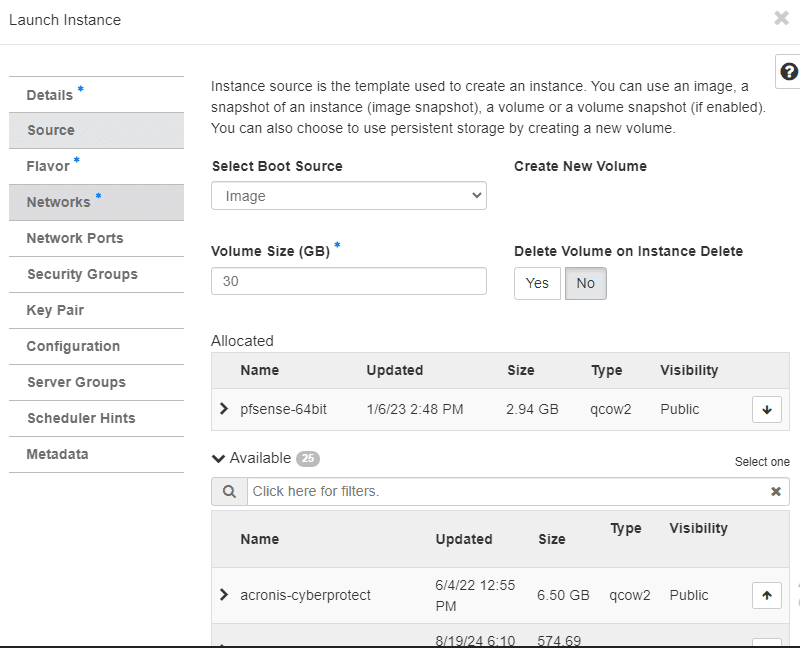
For security groups, see table below
| Protocol | Port/Value | Description |
|---|---|---|
| UDP | 500 | For IKE, to manage encryption keys |
| UDP | 4500 | For IPSEC NAT-Traversal mode |
| ESP | 50 | For IPSEC |
| AH | 51 | For IPSEC |
| SSH | 22 | This is important to enable you connect to your instance |
| HTTP | 80 | For pfsense web ui |
| HTTPS | 443 | For pfsense web ui |
See Security Groups Rule and Reference for a comprehensive documentation on how to add your security groups
After you have created your pfSense instance, you can then connect to it. See Connecting to your FCS Instance for a comprehensive documentation
Access the pfSense web configurator
To access the pfSense web, open a web browser on a computer connected to your firewall and enter https://[your-Server-IP-address]. Enter your username and password in the login page. The defaults are admin/pfsense, respectively. Once logged in, you’re taken to the pfSense Dashboard, which displays useful high-level information about your firewall.
Login to your pfSense appliance then go to VPN and click on IPsec. Two widgets are displayed by default: System Information and Interfaces. You can add more by clicking the + icon at the top right
Click on Add P1
Using the information from the configuration text file, configure as stated. See image below.
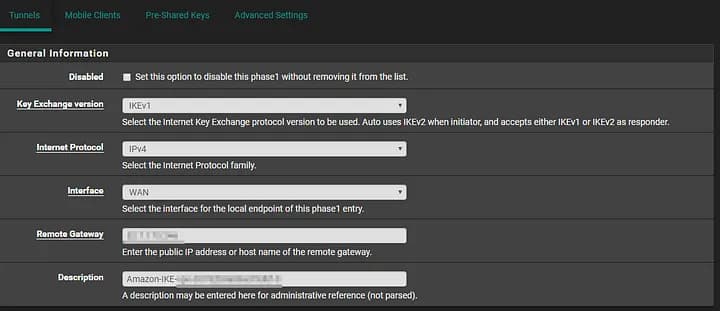
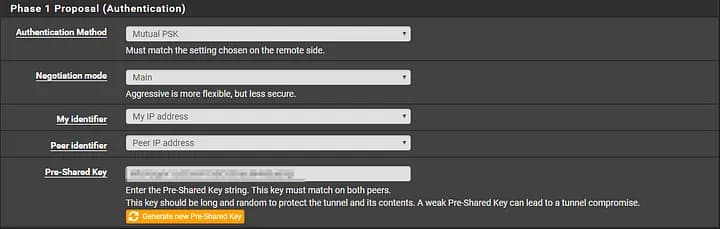
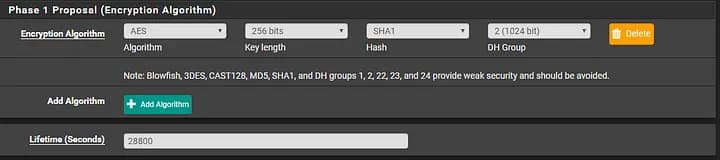
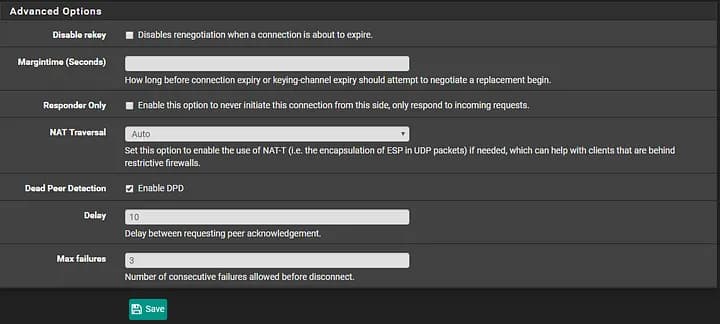
Click on save when finished.
IPSec Configuration
From the VPN IPsec dashboard, click on Show Phase 2 Entries under the Tunnel you created

Click on Add P2

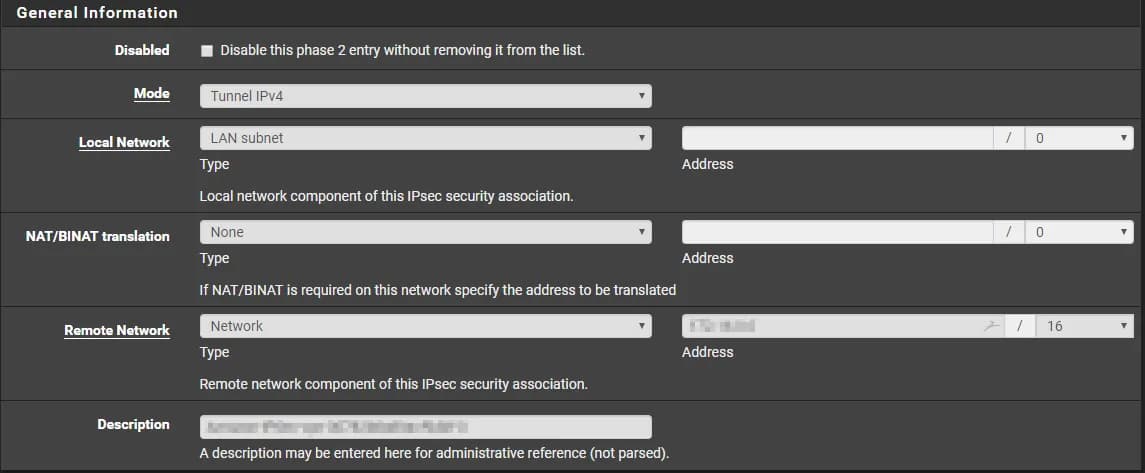
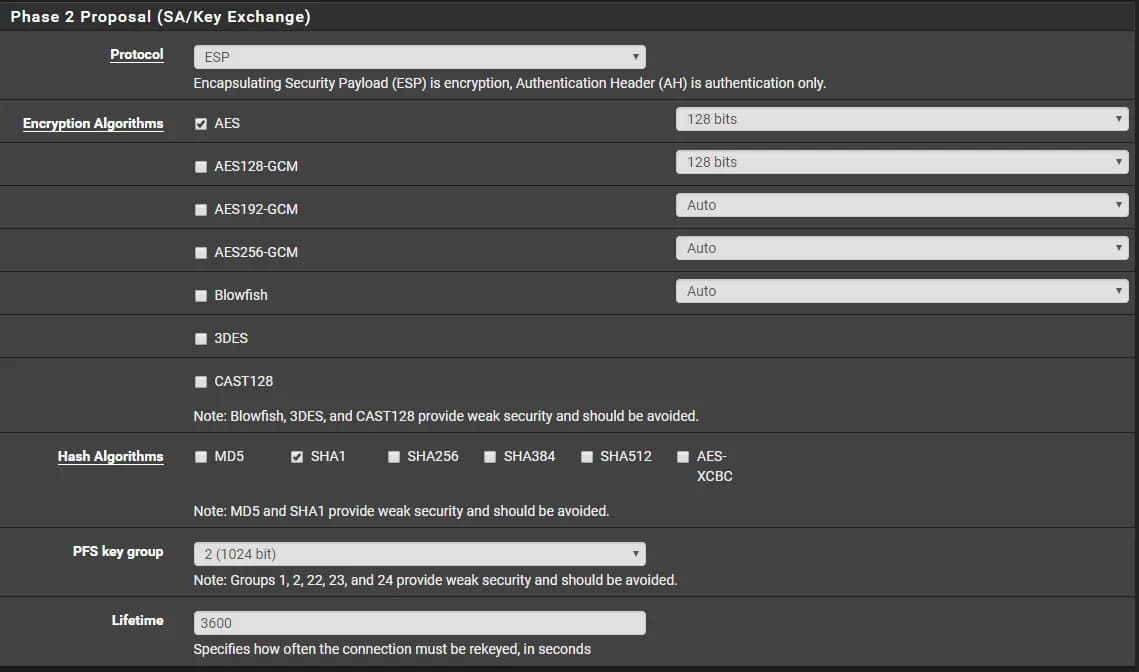
Using the values from the text file, enter the information as needed. For Remote Network, enter in the subnet for your VPC you are connecting to. You can look up this information by going to your VPC dashboard, and clicking VPCs. It is in the IPv4 CIDR column.

General Information
Phase 2 Proposal
Advanced Configuration
Enter in an IP of a peer instance that you can ping and click on Save

Click on Apply Changes
To see if your VPN Connection is established, click on Status and go to IPsec
Under Status, you should see ESTABLISHED
Configuring Routes
On the right hand side (R.H.S) of the VPN Peer, you need to set a route to your local subnet. You need to configure your VPC to route your pfSense appliance over the gateway and not the internet.
Test connections
For a test, SSH into one of your instances using the local IP (Left) and now I try to reach a server on the other side of the tunnel (Right)
Contact technical support if you run into any issues.
Setup HaProxy on pfSense to Route Request to Multiple Instance in Nobus
HAProxy is a free and open source software that provides a high availability load balancer and Proxy for TCP and HTTP-based applications that spreads requests across multiple servers.
Nobus Loadbalancer instance Pricing
If you create a HA Proxy instance in your Nobus project, Nobus bills you for the monthly VPN instance hours and monthly bandwith. If you no longer intend to be charged for the service, simply terminate your loadbalancer instance with its associated storage using the Nobus dashboard.
Nobus FCS Instance standard charges apply. See FCS pricing.
See Nobus Pricing Calculator to calculate your monthly estimates.
HA Proxy Front End is essentially an application load balancer, while the Back End a target group. i.e. it is a configuration space that ultimately points to an upstream server somewhere. For those familiar with Nginx and using this as a reverse proxy, then the Back End in HA Proxy terminology tends to align closely with upstream Server in Nginx terminology.
we’re going to look at how you can host multiple websites on separate virtual machines that sit behind a pfSense firewall with HA Proxy installed.
Visit https://docs.haproxy.org/ for advanced configuration options.
Configuring Haproxy on pfSense
Ensure you have already created a pfSense firewall instance in your nobus project
See FCS Instance Quickstart Guide for a comprehensive documentation
Select the image: pfsense-64bit as the boot source. See table below.
| Name | Type | Status | Visibility | Protected | Disk Format | Size |
|---|---|---|---|---|---|---|
| pfsense-64bit | Image | Active | Public | Yes | QCOW2 | 2.94 GB |
Additional Details
| Name | pfsense-64bit |
| ID | 4a0a313c-de16-4fc4-a2d4-0698f142591a |
| Visibility | Public |
| Protected | Yes |
| Min. Disk | 30 |
| Min. RAM | 2048 |
For security groups, see table below
| Protocol | Port/Value | Description |
|---|---|---|
| SSH | 22 | This is important to enable you connect to your instance |
| HTTP | 80 | For pfsense web ui |
| HTTPS | 443 | For pfsense web ui |
| HTTP | 2200 | For haproxy internal stat port to be used for stat tab |
See Security Groups Rule and Reference for a comprehensive documentation on how to add your security groups
After you have created your pfSense instance, you can then connect to it. See Connecting to your FCS Instance for a comprehensive documentation
Access the haproxy pfSense web configurator
To access the pfSense web, open a web browser on a computer connected to your firewall and enter https://[your-Server-IP-address]. Enter your username and password in the login page. The defaults are admin/pfsense, respectively. Once logged in, you’re taken to the pfSense Dashboard, which displays useful high-level information about your firewall.
Login to your pfSense appliance then go toConfigure pfSense System > Advanced > Admin Access
By default the pfSense WebGUI runs over port 80 and 443. What this means is that if you want to host a website behind pfSense then you need to re-configure this since your websites are going to be running over either HTTP or HTTPS. To do this, simply change the TCP Port to an available port and disable the webConfigurator Redirect Rule as can be seen below;
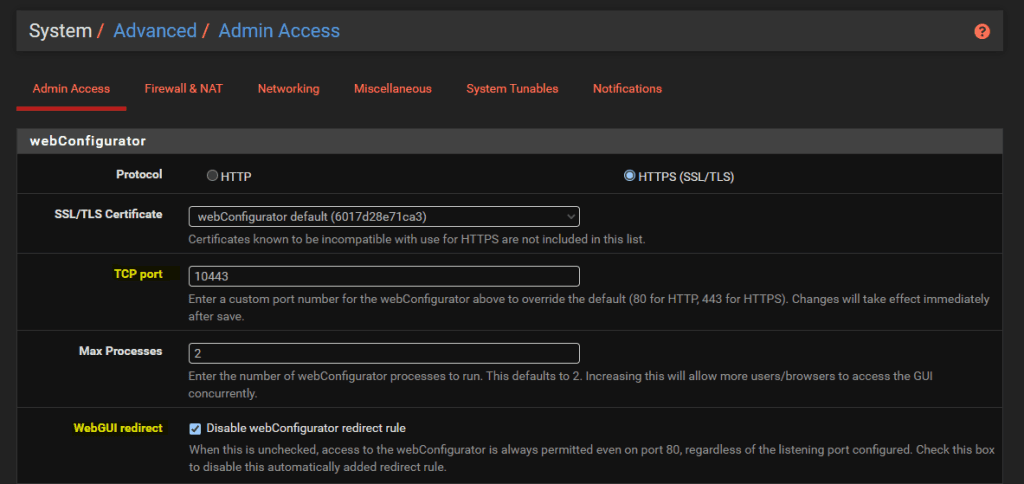
Install HA Proxy via pfSense Package Manager
The first place to get started is to install the latest version of HA Proxy via the pfSense package manager by navigating through to System > Package Manager > Available Packages. Simply install the package and you’ll see this software now available for you to manage and configure.

Whenever you install packages within pfSense you’ll notice different menu items start to appear where you can configure the package and/or view the current use of it. The core menu item for configuring HA Proxy is under Services > HA Proxy ;

Configure HA Proxy Settings
First we’ll get started with the overall HA Proxy Settings.
Turn on HA Proxy

Turn on HA Proxy Statistics
To do this simply configure a relevant port on the settings page (In our case 2200 )
 The stat tab gives you a handy report that you can view fromStatus > HA Proxy Stats page which allows vieving service status so you can understand how many sessions are hitting your Front Ends and Back Ends in Haproxy server once setup is completed. This provides valuable insights when trying to debug things if they working as expected.
Configure the Max SSL Diffie-Hellman Size

Summary of Settings Configuration
we’ve skipped a lot of the settings that are available to configure and for genuine reason. This is a basic setup.
Visit https://docs.haproxy.org/ for advanced configuration options.
Setup Your Instances
In the previous step you create instances. we have got the three VMs that are powering on domain1.com, domain2.com, domain3.com
Ensure you have configured them to run Apache / httpd. Also httpd runs on startup, allow inbound http traffic and added a basic index.html page in /var/www/html/index.html so that you can easily see which server you are on.
Configure HA Proxy Back Ends
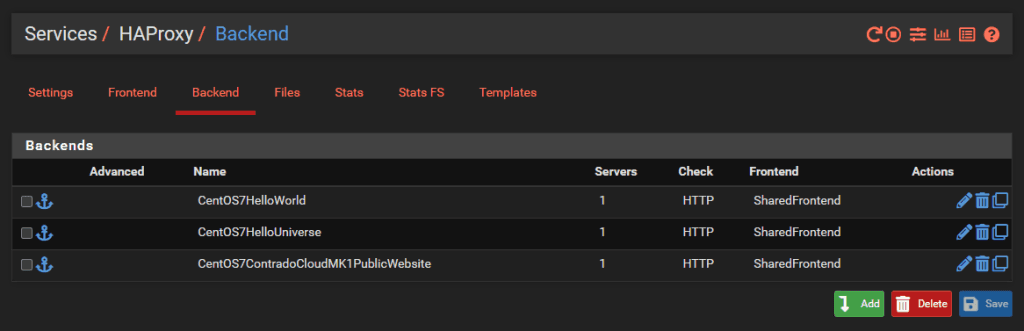
And we’ll dig into a single one as an example, the others are the same though with no differences beyond IP addresses. So configure your first Back End in HA Proxy;
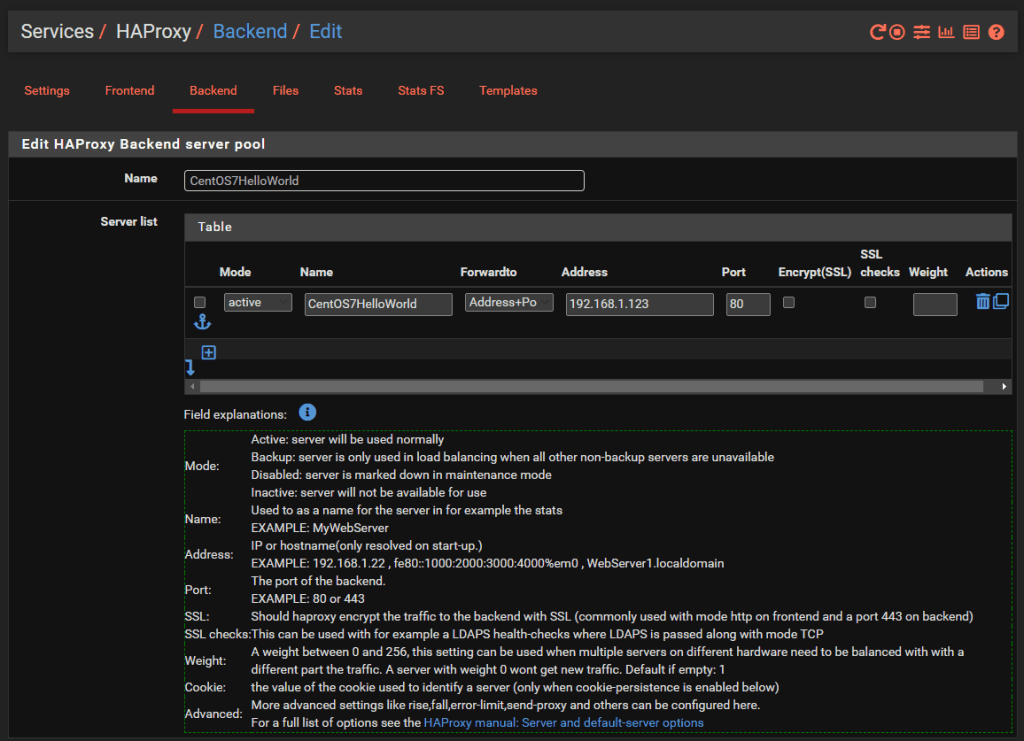
You’ll notice that the IP address is on the 192.168.1.0/24 LAN network which is clearly insecure, as is the Port 80 for insecure HTTP traffic for any real world production environment. But at least this gives an example for how to get this set up as a starting point. There is nothing really to configure as a basic setup beyond the above.
Configure HA Proxy Shared Front End
If you are only hosting a single website then you can use a basic Front End rather than a shared front end, the configuration steps are very similar. You actually don’t even need to use HA Proxy if you are only hosting a single website as you can use basic Port Forwarding in pfSense
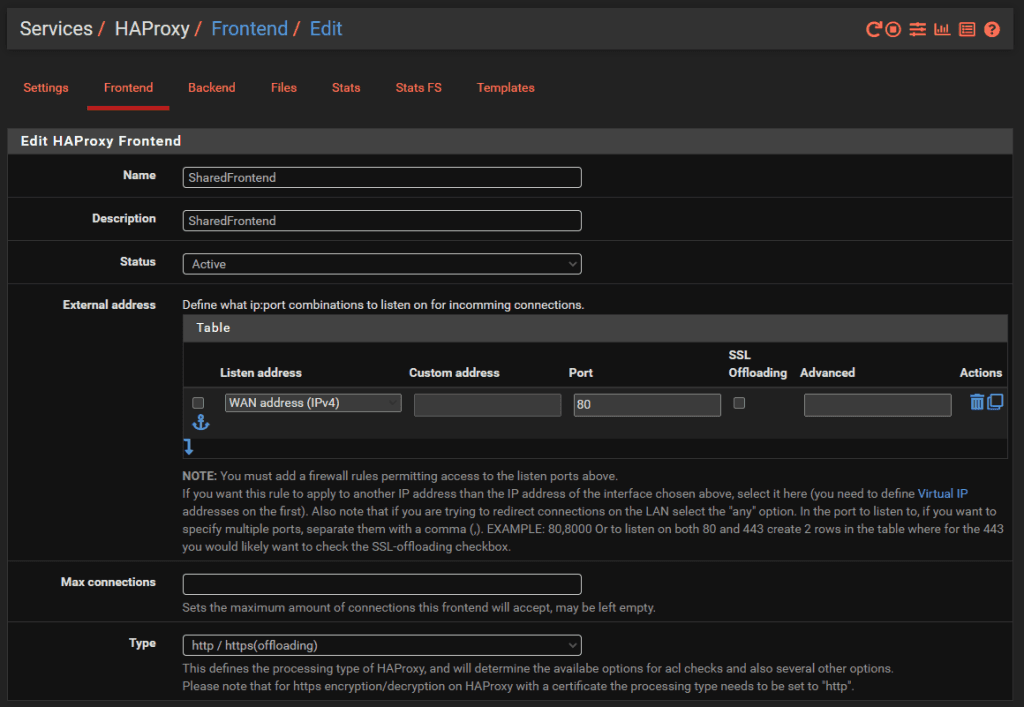
Now that you have all of your Back End HA Proxy configured, it’s time to apply a Front End to handle traffic from the internet in a way that suits your needs. Primarily determined by the hostname of the incoming request
Simply give the Front End a Name, Description, make sure it’s Active and listening on the WAN on port 80 then set the Type to ‘http / https (offloading)’ as can be seen in the image below;
The next bit of configuration on your Front End is to configure what rules you need in place to allow your front end to talk to multiple back ends depending on your setup. For this blog post we’ve simply got the 3x virtual machines powering the HelloWorld, HelloUniverse and MK1 sub-domains to see how this works.
Firstly, configure your Access Control Lists which in this example simply gives you a way to map a hostname to a friendly name.
Next, configure the Actions by mapping how each of the Access Control List friendly names maps to a Back End in HA Proxy.
Finally, select which is the default Back End so that HA Proxy knows where to send traffic when it doesn’t know what to do with it.
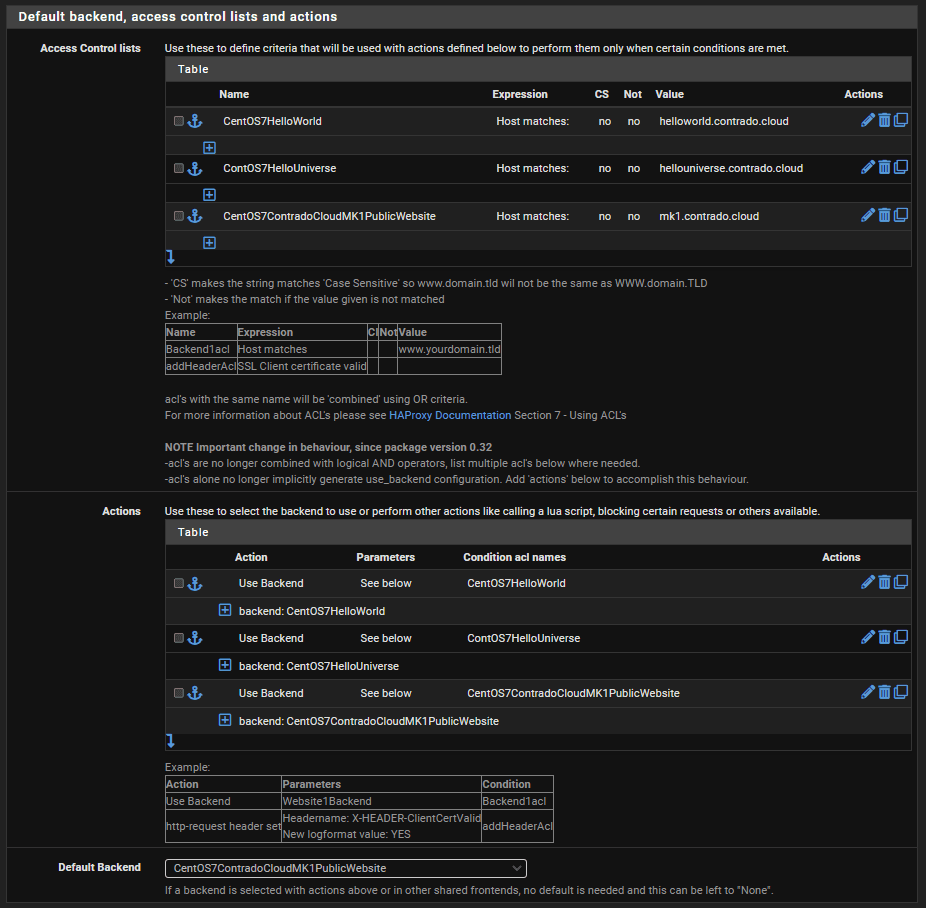
And that’s it for configuring a very basic implementation set up so you can have a baseline to play with and improve up.
Configure pfSense Firewall Rules
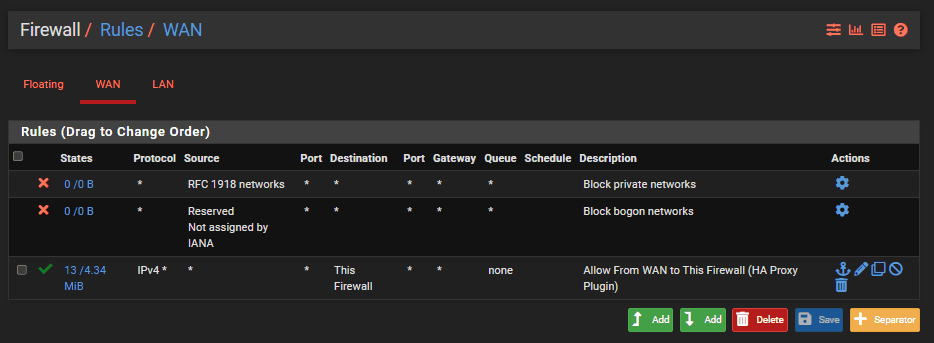
Last step is to ensure you have a firewall rule on your WAN interface so that inbound traffic to the WAN from the internet can talk to the firewall and hence HA Proxy so that HA Proxy can then direct the inbound traffic to the correct destination based on what you have configured. Note that the top two rules in the screenshot below are out of the box pfSense rules to protect your network.
Test sites
Simply navigating to your Sub-Domains and check everything is loading correctly as you expect
Contact technical support if you run into any issues.