
Nobus Cloud Cache
Nobus Cloud Cache gives you a Redis in-memory data store on its own server in Nobus Cloud, ready in a few minutes from the dashboard. Applications use it to keep frequently used data, sessions, and queues in memory, so they can read them much faster than from a database on disk. You choose the server size, port, and password; Nobus Cloud sets up the server and installs Redis for you.
Features of Cloud Cache
Cloud Cache provides the following features:
-
Launch a Redis server from the dashboard in about 3 to 5 minutes.
-
Choose the spec, the Redis port, and extra disk space.
-
Copy or download the connection details and password.
-
Start, stop, and restart Redis from the Actions menu.
-
Scale the CPU and memory, or increase the disk, as your data grows.
-
Change the Redis password at any time.
-
Read the Redis logs from the dashboard.
-
Data is saved to disk with Redis snapshots (RDB).
Visit nobus cloud management dashboard to get started with Cloud Cache.
Nobus Cloud Cache
Nobus Cloud Cache is a Redis server that Nobus Cloud creates and sets up for you. Redis is an in-memory data store: it keeps data in the server's memory (RAM), which makes reading and writing it very fast.
When you create a Cloud Cache, Nobus Cloud starts a server with the spec you choose, installs Redis on it, and opens the port you pick. Your applications then connect to the server's public IP address with the port and password shown in the dashboard. Redis also saves a copy of the data to the server's disk from time to time, so most of it survives a restart.
Think of it like a whiteboard next to your desk: you keep the things you check all day on it so you don't have to walk to the filing cabinet each time. The filing cabinet — your main database — still holds the full records.
Benefits of Nobus Cloud Cache
Faster applications:
Data kept in memory is returned much faster than data read from disk.Ready in minutes:
Nobus Cloud creates the server and installs Redis, usually in about 3 to 5 minutes.Grows with you:
Scale the CPU and memory, or add disk space, from the dashboard.You control access:
Limit which IP addresses can reach your cache with security group rules.
User Guide — Create and Manage Your Cloud Cache
This guide explains what a Cloud Cache is, and how to use the Nobus console to create one, connect your applications to it, keep it private, and look after it day to day. It is written for all users — no programming or infrastructure background required.
What this guide covers
Opening Cloud Cache, creating a cache, understanding its status, viewing credentials and connecting, limiting access to your own IP addresses, using the Actions menu, scaling, changing the password, keeping your data safe, deleting a cache, troubleshooting, and common questions.
How Cloud Cache Works
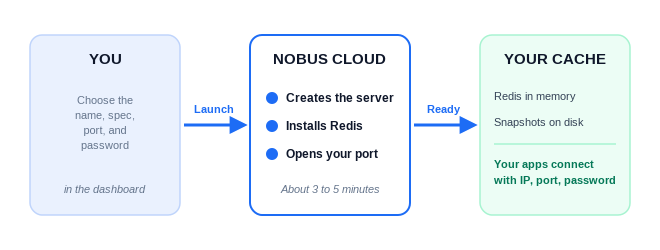
Nobus Cloud creates the server, installs Redis, and opens your port while you focus on your applications and the data they keep in the cache.
Service Boundary
Nobus Cloud creates the server, installs Redis, and opens the port you choose. You decide what data goes in, who can connect, and how large the server is. Only Redis's own snapshots are kept on the server's disk; there are no separate backups.
Restrict access first
A new Cloud Cache accepts connections from any IP address, and connections are not encrypted. Limit access to your own IP addresses straight after creating it — see section 7.
Contents
1. Getting started
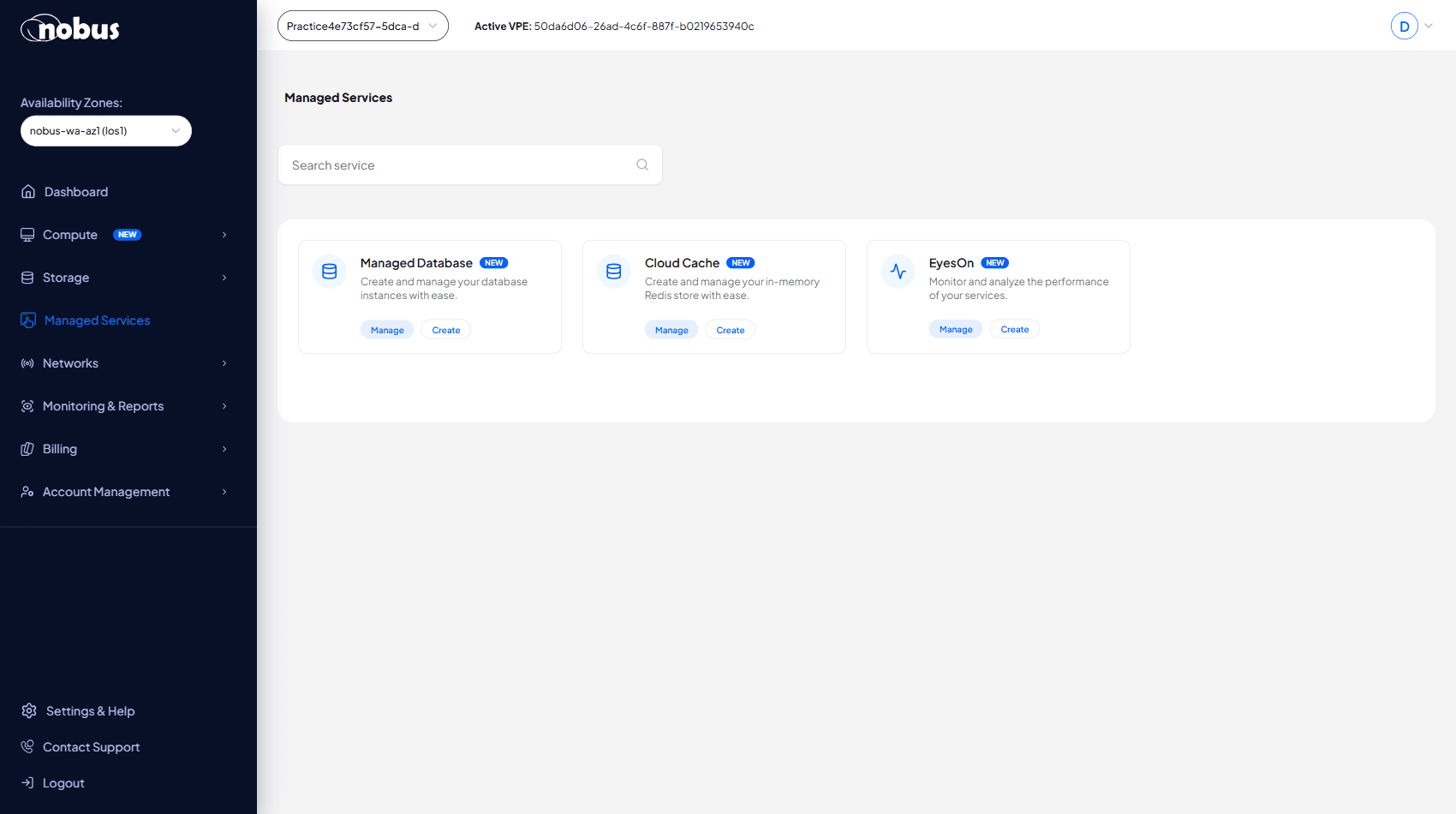
Open the Cloud Cache area
- 1Log in to the Nobus Cloud dashboard.
- 2On the left side of the dashboard, select Managed Services.
- 3Find the Cloud Cache card. Select Manage to see your caches, or Create to make a new one.
- 4The Cloud Cache page opens and lists your caches with their size, creation date, and status.
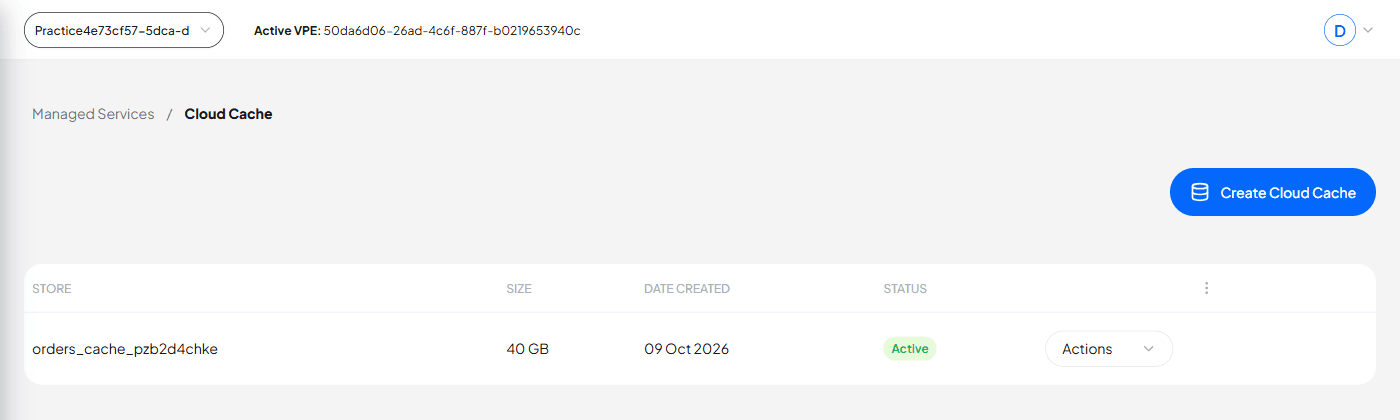
Where to find it: the list shows each cache under STORE, with its SIZE, DATE CREATED, and STATUS. Each row has an Actions menu.
2. Key concepts
Cache
A fast store for data your applications use often, such as sessions, lookups, and queues. It sits beside your main database, not instead of it.
Redis
The open-source in-memory data store that runs on your Cloud Cache server.
Spec
The size of the server: how many vCPUs, how much memory (RAM), and how much disk it has.
Port
The numbered door your applications use to reach Redis. The default is 6379.
Snapshot (RDB)
A copy of the data that Redis saves to the server's disk from time to time, so data survives a restart.
Security group rule
A firewall rule that decides which IP addresses can reach a port on your server.
3. Before you start
Have these ready before you create a Cloud Cache:
- A name of at least 3 characters, using only letters, numbers, and underscores (for example orders_cache).
- A password of at least 16 characters, using only letters and numbers. Store it in a password manager.
- The port you want. Keep 6379 unless you have a reason to change it.
- The public IP addresses of the servers or computers that will connect, so you can limit access to them (section 7).
Choose enough memory
Redis on Cloud Cache has no memory limit set. If your data fills the server's RAM, the server slows down and Redis can crash or be stopped. Pick a spec with more RAM than your data needs, and scale up before it runs out.
Billing: you are billed for the server your Cloud Cache runs on, whether Redis is running or stopped.
4. Create a Cloud Cache
Step 1
Open the creation page
On the Cloud Cache page, select Create Cloud Cache in the upper-right corner. You can also select Create on the Cloud Cache card under Managed Services. The Setup Cloud Cache page opens.
Step 2
Fill in the details
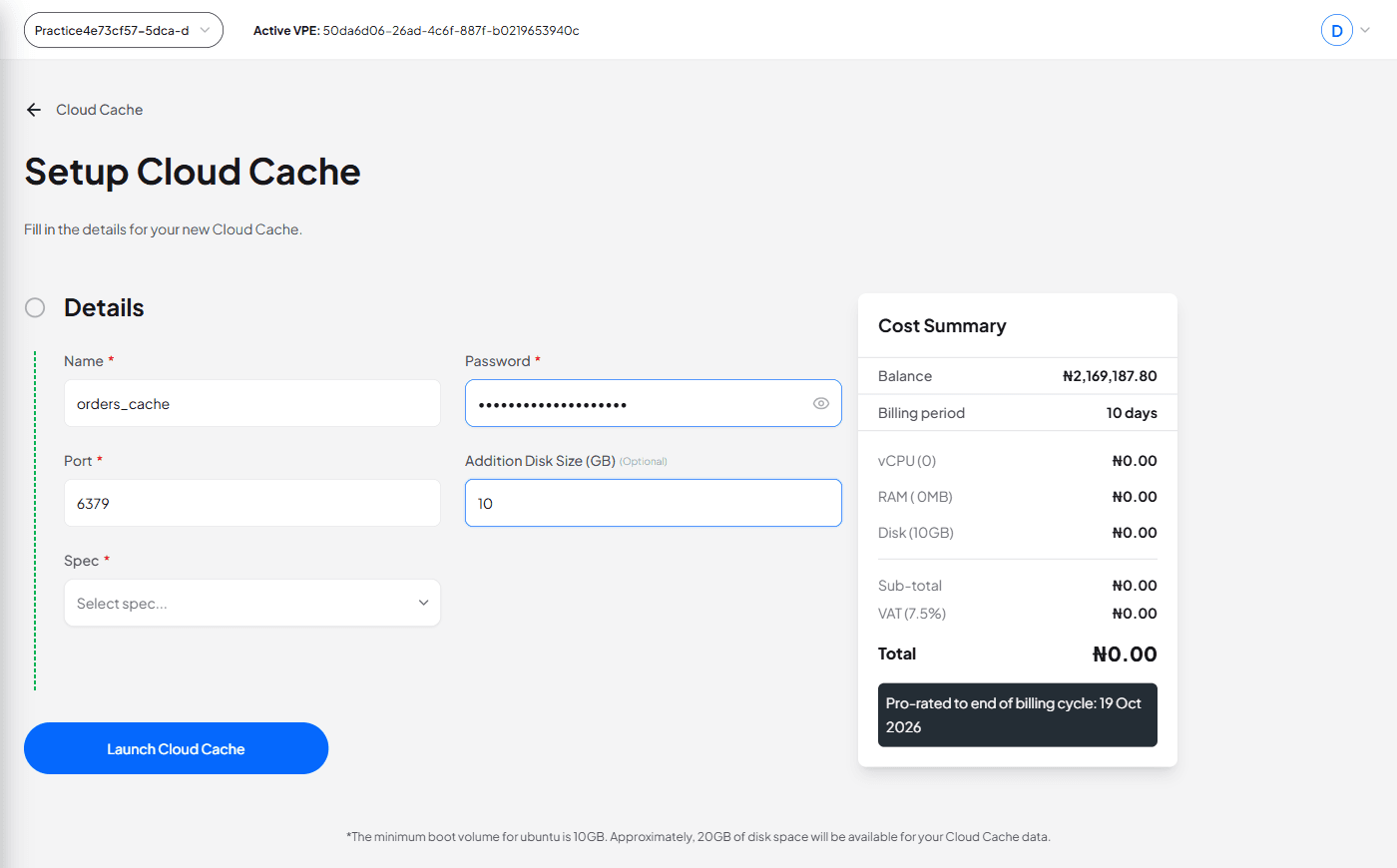
| Field | Rule | Example |
|---|---|---|
| Name | At least 3 characters; letters, numbers, and underscores only. The dashboard adds a short random ending, so the cache appears as, for example, orders_cache_pzb2d4chke. | orders_cache |
| Password | At least 16 characters; letters and numbers only. | Private 16+ chars |
| Port | Any valid port that is free. 6379 is filled in and recommended. | 6379 |
| Addition Disk Size (GB) | Optional, up to 1000. Added to the spec's disk to give Redis more room for its data. | 50 |
Step 3
Choose a spec
Open Spec and pick a size. Each option shows its vCPUs, RAM, and disk. Choose the RAM by how much data you plan to keep in the cache.
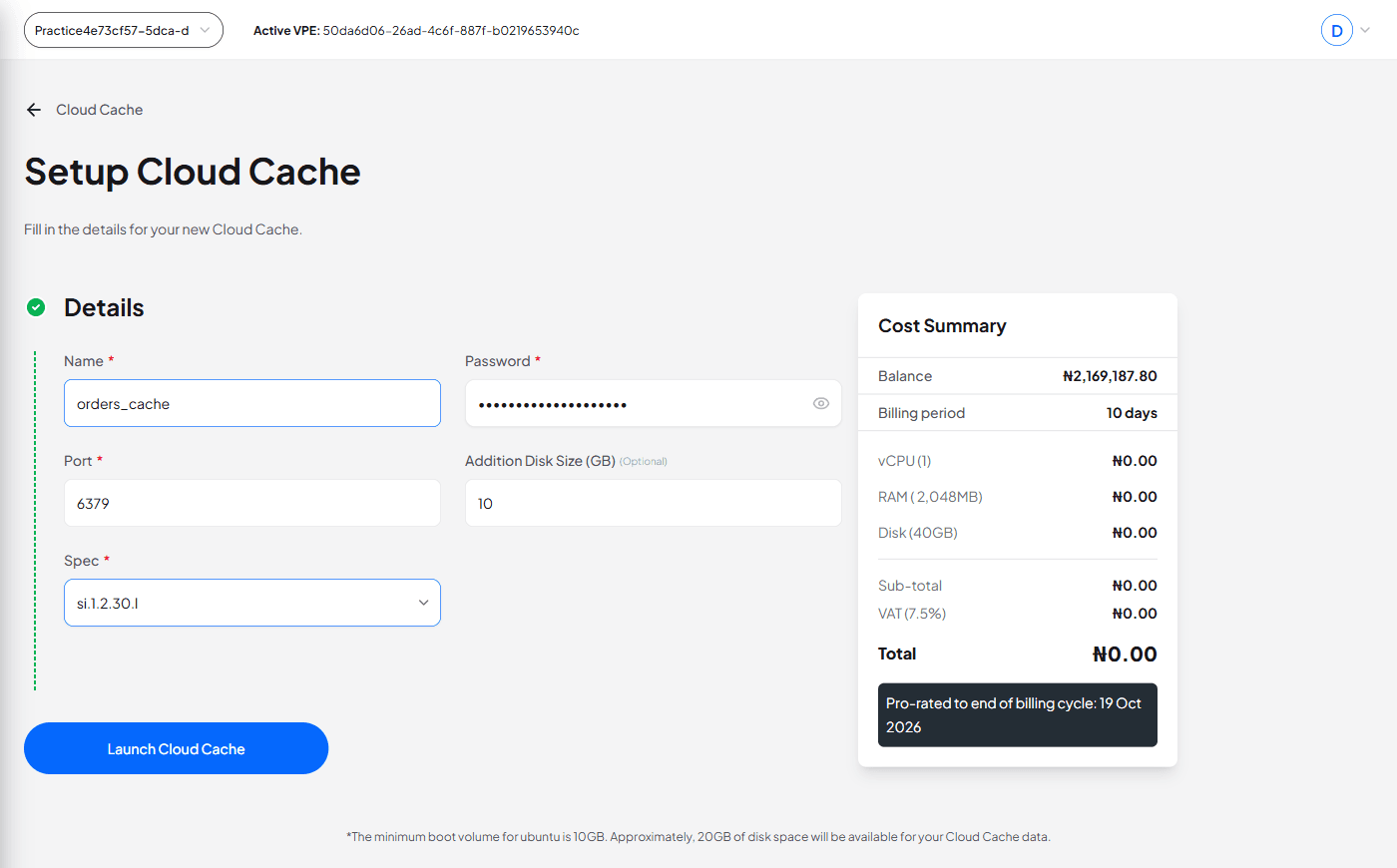
How much disk Redis gets: the spec's disk plus any Addition Disk Size. The page notes that the operating system uses about 10 GB, leaving roughly 20 GB of the spec's disk for your data. For example, adding 50 GB gives about 70 GB for Redis.
Step 4
Review and launch
If you are an account admin, the Cost Summary shows your balance, the billing period, and the cost before and after VAT. Select Launch Cloud Cache. A message confirms that your Cloud Cache is being provisioned, and it appears in the list with the status Pending.
5. Status and provisioning
| Status | Meaning | What you can do |
|---|---|---|
| Pending | Your request was accepted and is waiting to start. | Wait. |
| Provisioning | The server is being created and Redis is being installed. | Wait. |
| Active | Redis is running and accepts connections. | Connect and use the Actions menu. |
| Inactive | Redis is stopped. | Start it from the Actions menu. |
| Failed | Setup did not finish. Nobus engineers look into the problem and fix it. | Wait for the Resume button. |
| Resume | The problem is fixed. A Resume button replaces the Actions menu. | Select Resume to finish setup from where it stopped. |
| Resuming | Setup is continuing. | Wait. |
Usual Provisioning Time
About 3 to 5 minutes.
During an action
While you start, stop, or restart a cache, its status shows Starting, Stopping, or Restarting.
6. View credentials and connect
When the status is Active, open the Actions menu and select View Credentials. Each detail has a Copy button, and Download Credentials saves them all to a file.
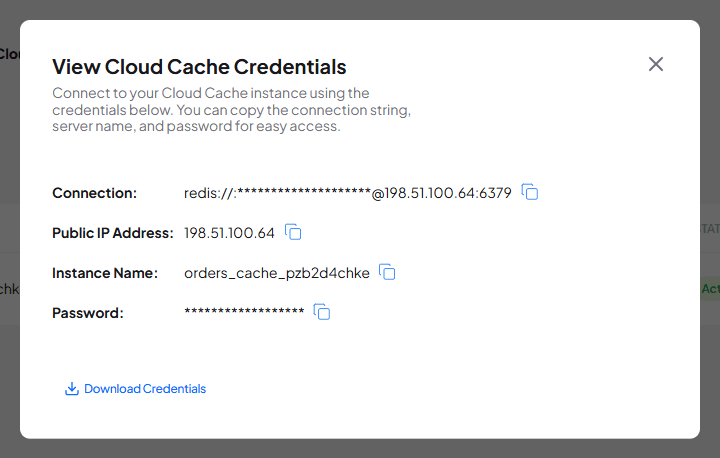
| Detail | Purpose |
|---|---|
| Connection | A ready-made connection string (password hidden on screen). |
| Public IP Address | The address your applications connect to. |
| Instance Name | The name of the server your cache runs on. |
| Password | The Redis password (hidden on screen; copy it with the Copy button). |
Before you connect
- The cache status is Active.
- Your IP address is allowed in the cache's security group (section 7).
- You have the public IP address and port.
- You have the password.
Connection string for your application
Command line (redis-cli)
7. Limit access to your IP addresses
Every Cloud Cache has its own security group, named after the cache with _redis_server_securityGroup added — for example orders_cache_pzb2d4chke_redis_server_securityGroup. When the cache is created, that group has a rule that lets 0.0.0.0/0 — any IP address — reach the Redis port. This rule can't be edited. Replace it with rules for your own addresses:
- On the left side of the dashboard, open Networks > Security Groups.
- Find the security group with your cache's name. Open its Actions menu and select Manage Rules.
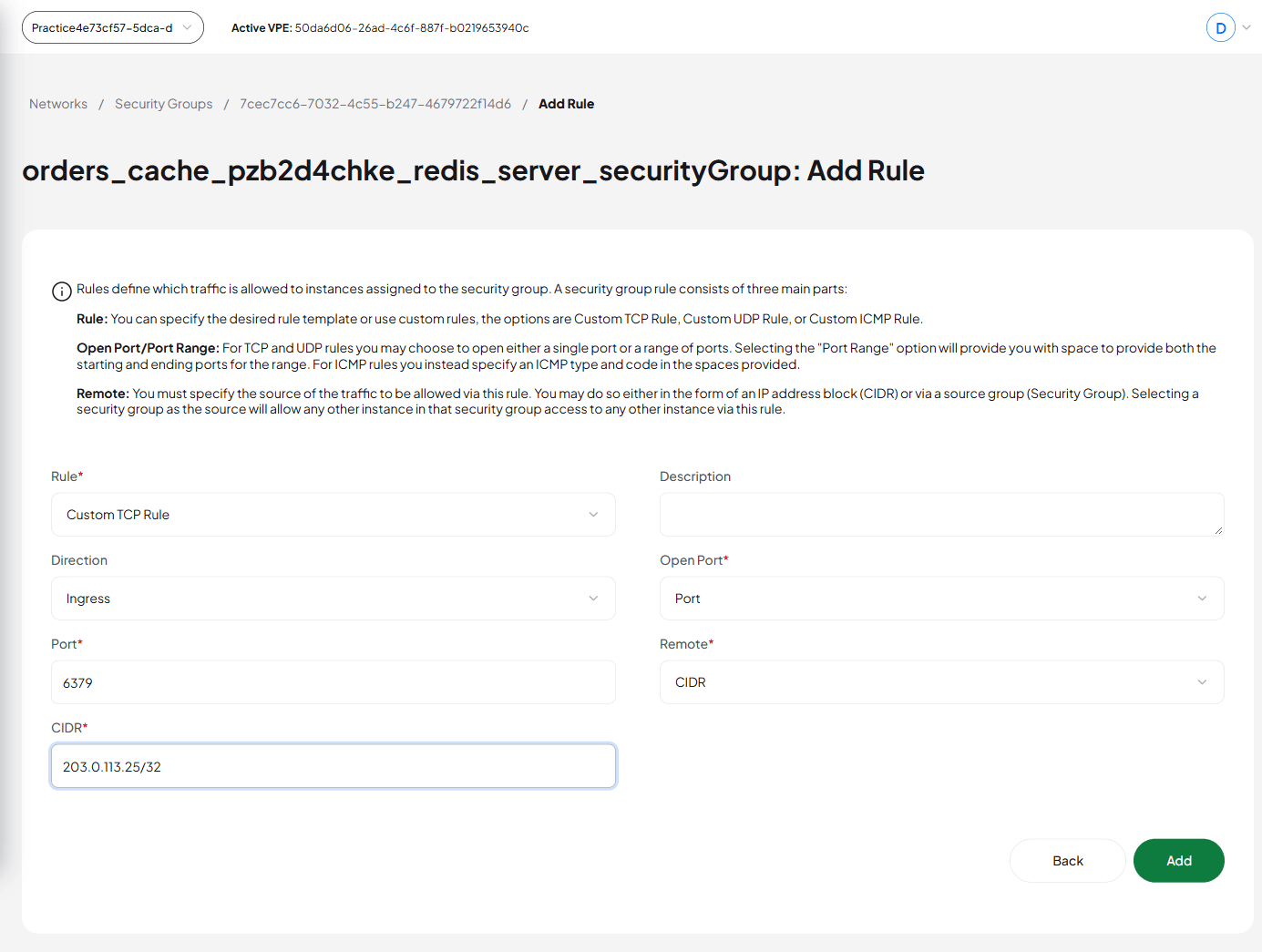
- Select Add Rule and fill it in: Rule: Custom TCP Rule; Direction: Ingress; Open Port: Port; Port: your Redis port (for example 6379); Remote: CIDR; CIDR: replace the pre-filled 0.0.0.0/0 with your IP address followed by /32 (for example 203.0.113.25/32). Select Add.
- Repeat step 3 for every IP address that needs access.
- In the rules list, find the rule for your Redis port whose REMOTE IP PREFIX is 0.0.0.0/0. Select Delete Rule and confirm.
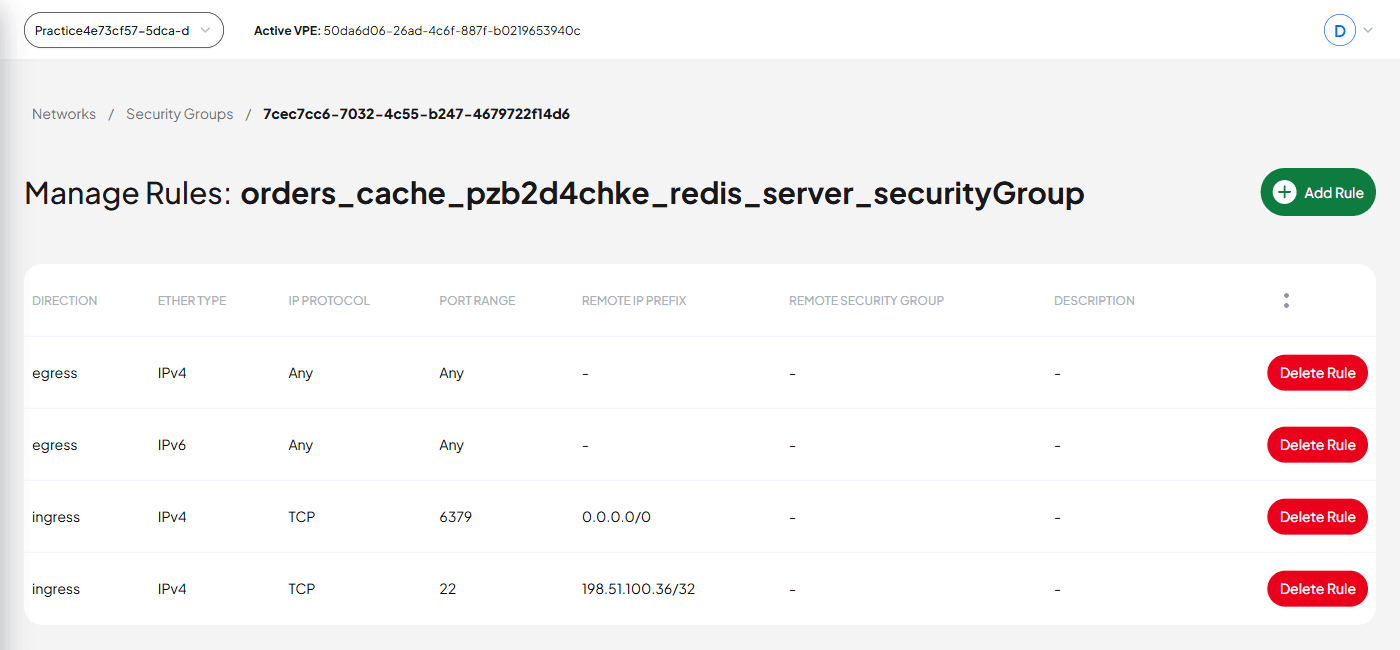
Why add the new rules first?
If you delete the open rule first, your applications lose access until the new rules are in place. Adding your rules first keeps them connected.
8. Manage your Cloud Cache
Open the Actions menu on a cache's row.
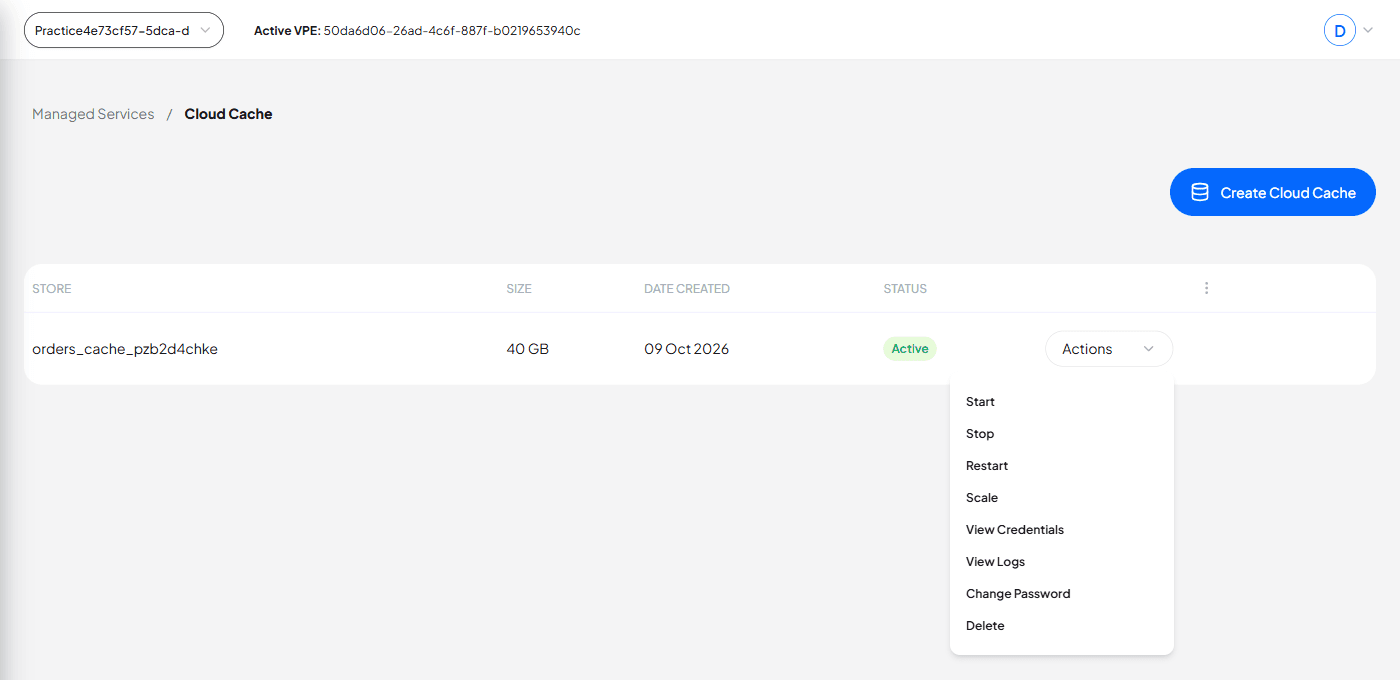
Starts Redis on a stopped cache.
Stops Redis. Apps can't connect until you start it again.
Restarts Redis. Apps disconnect briefly.
Changes the spec or increases the disk.
Shows the connection details and password.
Shows the Redis log.
Sets a new Redis password.
Removes the Cloud Cache.
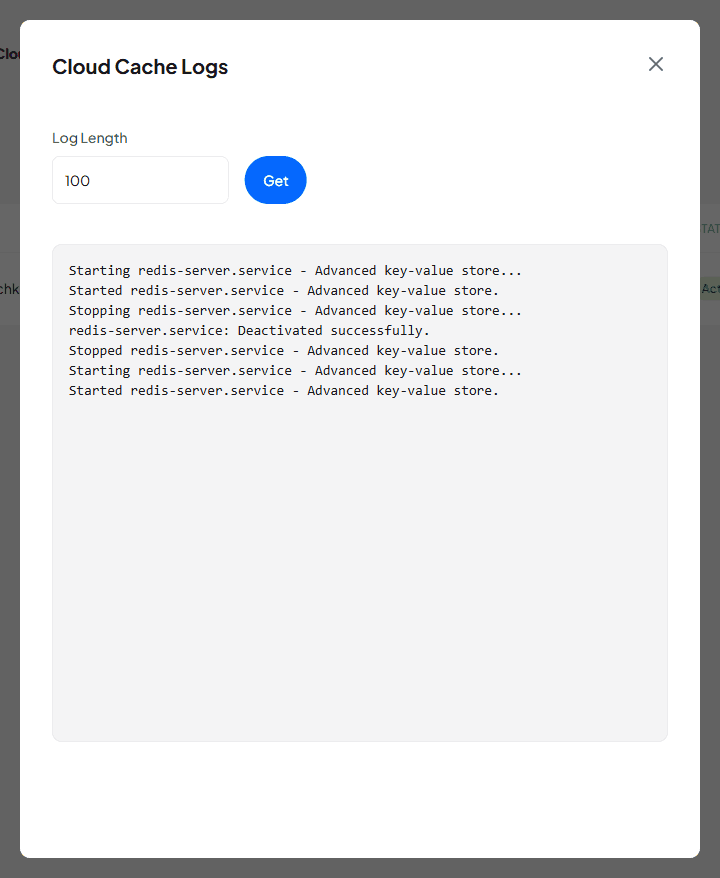
Read the logs
Select View Logs. The Cloud Cache Logs window opens with the latest entries. To show more or less of the log, change Log Length (100 by default) and select Get.
9. Scale the spec or disk
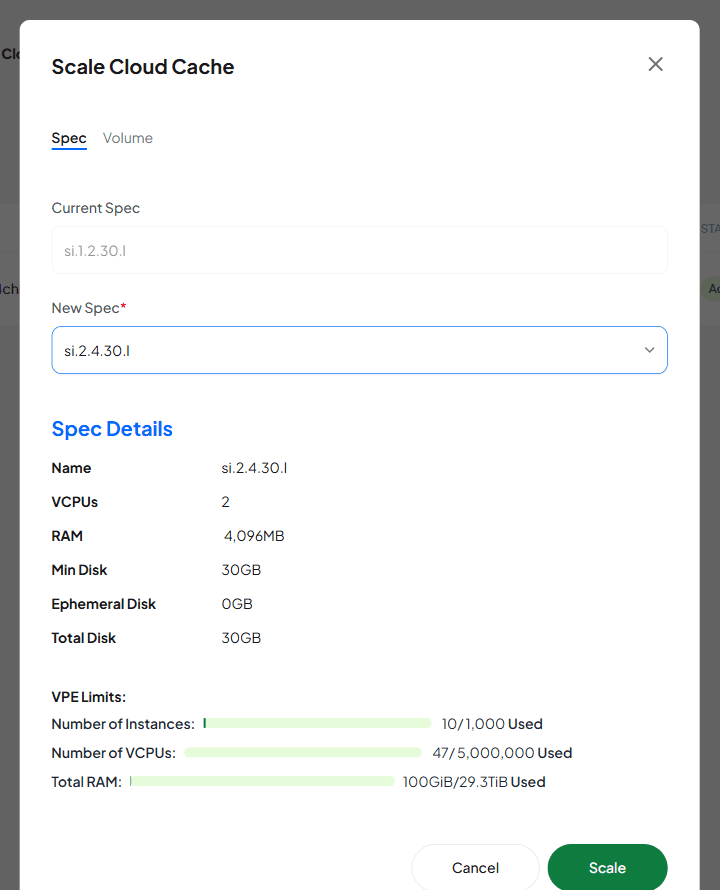
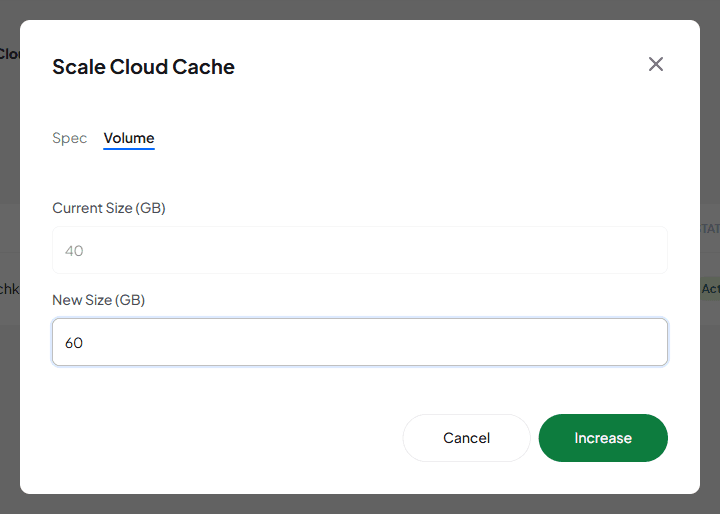
Select Scale from the Actions menu. The Scale Cloud Cache window has two tabs.
Spec
Shows your Current Spec. Pick a New Spec, check its Spec Details and your VPE Limits, then select Scale. Use this to add CPU or memory.
Volume
Shows the Current Size (GB). Enter a larger New Size (GB) and select Increase. Disk can only be increased.
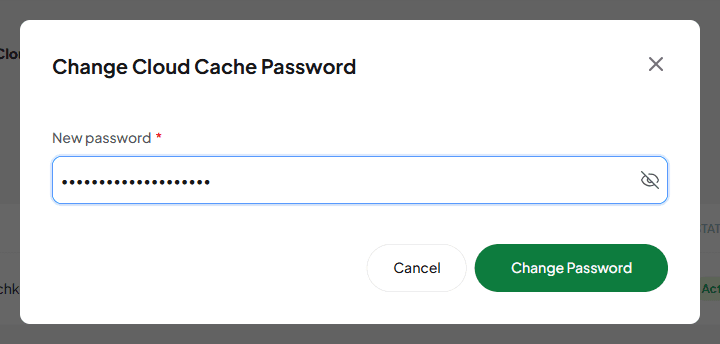
10. Change the password
- Open the Actions menu and select Change Password.
- Enter the New password: at least 16 characters, letters and numbers only.
- Select Change Password.
- Update every application with the new password.
11. Keep your data safe
Redis saves snapshots of your data (RDB) to the server's disk from time to time. After a stop, restart, scale, or password change, Redis reloads the latest snapshot. Changes made after that snapshot may be lost.
There are no backups outside the server. Keep the original copy of important data in your main database or another store, so you can rebuild the cache if you need to.
Rule of thumb: use Cloud Cache to speed things up, not as the only place your data lives.
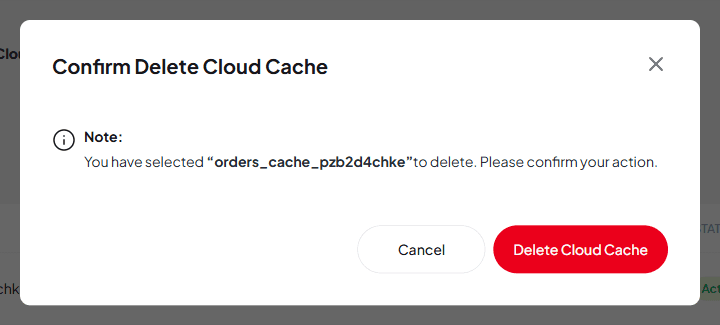
12. Delete a Cloud Cache
Deleting a Cloud Cache is permanent. It removes the server and all the data stored on it.
- Open the Actions menu and select Delete.
- Check the cache name in the Confirm Delete Cloud Cache window.
- Select Delete Cloud Cache.
Permanent Deletion
Everything in the cache is lost and cannot be recovered. Make sure no application still uses it, and that you have a copy of any data you need.
13. Recommended operating practices
| Practice | Why it matters |
|---|---|
| Allow only your IP addresses | A new cache accepts connections from anywhere, and traffic is not encrypted. |
| Use a long, unique password | The password is the only thing stopping anyone who can reach the port. |
| Leave memory headroom | There is no memory limit; a full server slows down and Redis can stop. |
| Keep the original data elsewhere | There are no backups outside the server. |
| Make your apps reconnect automatically | Restarts, scaling, and password changes disconnect them briefly. |
| Scale at quiet times | Scaling stops and restarts the server. |
14. Troubleshooting
Simple troubleshooting path
Check the status
It must be Active. Start the cache if it is Inactive.
Check the security group
Your IP address and Redis port must be allowed (section 7).
Check the connection details
Copy the public IP address, port, and password again from View Credentials.
Read the logs
Open View Logs and look at the latest entries.
Contact support
Open a support ticket with the cache name and what you see.
My app can't connect
Check the status, then the security group rules for your IP and port.
The password is rejected
Someone may have changed it. Copy it again from View Credentials.
The cache is slow or stopped by itself
The server may be out of memory. Scale to a spec with more RAM.
Recent data is missing after a restart
Changes after the last snapshot can be lost. Reload them from your main database.
15. Frequently asked questions
Is the connection to my cache encrypted?
No. Cloud Cache uses plain Redis connections without TLS, so allow only the IP addresses that need access.
Is a new cache open to the internet?
Yes. The Redis port accepts any IP address until you replace that rule in the cache's security group.
Can I use a port other than 6379?
Yes. Any valid port that is free works; 6379 is recommended.
Do I keep my data when I stop or restart the cache?
Yes, mostly. Changes made since Redis's last snapshot may be lost.
Is my Cloud Cache backed up?
No. Redis keeps snapshots on the server's own disk, but there are no backups outside it.
Does scaling cause downtime?
Yes. Changing the spec or increasing the disk stops and restarts the server.
Can I make the disk smaller?
No. Disk can only be increased.
Am I billed while the cache is stopped?
Yes. You are billed for the server, whether Redis is running or not.
Does changing the password disconnect my apps?
Yes. Redis restarts, and apps must reconnect with the new password.
Can I get a deleted Cloud Cache back?
No. Deletion is permanent and everything stored in the cache is lost.
Can I remove the SSH rule from the cache's security group?
No. Nobus Cloud uses it to manage your server, so leave it in place.
Which Redis version do I get?
The version that Ubuntu provides when your cache is created.
16. Glossary
| Term | Simple Meaning |
|---|---|
| Cache | A fast store for data your applications use often. |
| Redis | The in-memory data store that runs on Cloud Cache. |
| RAM | The server's memory, where Redis keeps your data. |
| Spec | The server size: vCPUs, RAM, and disk. |
| Port | The number your applications use to reach Redis. |
| Public IP address | The address your applications connect to. |
| Security group | The firewall rules that decide who can reach the server. |
| CIDR /32 | A way of writing one single IP address in a security group rule. |
| Snapshot (RDB) | A copy of the data Redis saves to disk from time to time. |
| Connection string | One line holding everything an app needs to connect. |
| Provisioning | The time it takes Nobus Cloud to create and set up the cache. |
Security Policy
Support requests should never contain your Cloud Cache password or connection string.